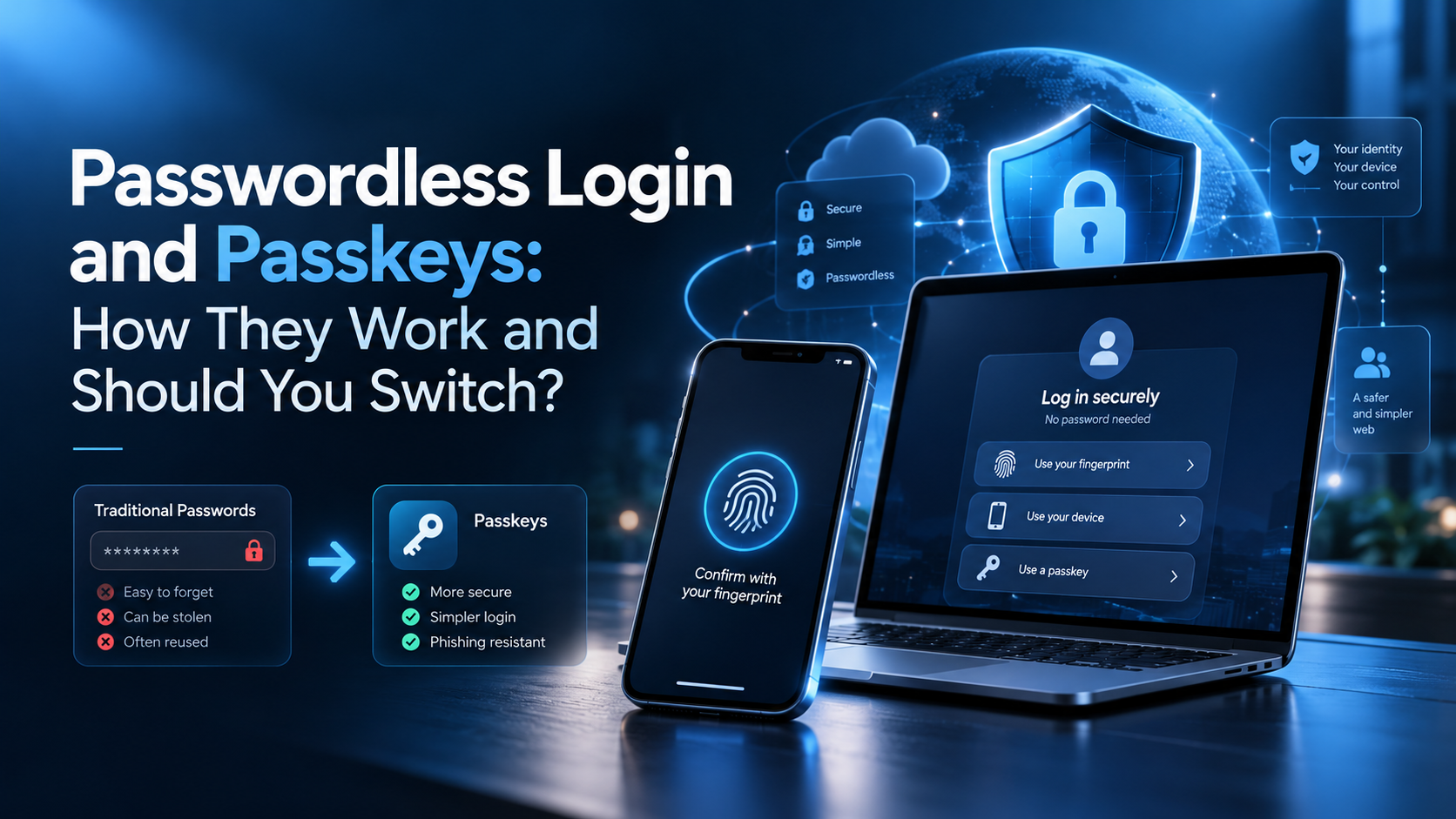
You forget a password. You click “Forgot password”. You wait for an email. You make a new password. Three months later, you do it all again.
Passkeys end that loop. Instead of typing a secret, you unlock your account the same way you unlock your phone: a fingerprint, a face scan, or a PIN.
This guide explains passwordless login and passkeys in plain words: how they work, where they already run, what breaks when you lose your phone, and whether you should switch.
What is a passkey for passwordless login?
A passkey is a pair of digital keys that replaces your password. The private key stays locked on your device. The public key sits on the website’s server. When you sign in, your device proves it holds the private key, and you approve it with your fingerprint, face or screen lock.
Nothing secret travels to the website, so there is nothing for a hacker to steal or for a fake site to trick out of you.
Passwordless authentication is already mainstream. The FIDO Alliance estimates 5 billion passkeys in use worldwide and reports that 75% of people have enabled a passkey on at least one account.
Passwords vs Passkeys: The Honest Comparison
| Password | Passkey | |
|---|---|---|
| What you do | Type a secret you must remember | Use your fingerprint, face or PIN |
| Where the secret lives | On the company’s server and in your head | Private key stays on your device |
| Can it be phished? | Yes. A fake site can collect it | No. The key only works on the real site |
| Can it be reused across sites? | Yes, and people do | No. Each site gets its own key |
| What a data breach exposes | Your password hash | A public key, which is useless alone |
| Works if you lose your device | Yes, from any device | Only if synced or you have a backup method |
| Needs a second factor (OTP) | Usually yes | No. It is already two factors in one |
| Cost to you | Free | Free |
The short version: a password is a secret you share with a website. A passkey is a proof you never share.
How Passwordless Login With Passkeys Actually Works
It takes two steps, and both happen in seconds.
Step 1: You register the passkey
- You sign in once the old way (password, or an email code) so the site knows it is really you.
- You tap “Create a passkey”.
- Your device generates two keys. The private key is locked in your device’s secure storage. The public key goes to the website.
- Your fingerprint or face confirms you were present.
Salesforce describes this plainly in its own documentation: before a user can register a passkey, “their identity must be verified”, often with a one-time code sent by email. Then the device generates a key pair, the private key stays on the authenticator, and the public key is registered with the server.
Step 2: You sign in
- The site sends your device a random puzzle, called a challenge.
- Your device signs that challenge with the private key, but only after you unlock it.
- The site checks the signature against the public key it already holds.
- You are in.
Your fingerprint never leaves your device. The FIDO Alliance is clear on this: biometric data stays on the device, and the server only receives confirmation that the check succeeded.
Do You Still Need a Username?
This is the question most guides skip, and it has two answers.
Sometimes yes. Many business systems still ask for a username first, then the passkey. Salesforce’s commerce login flow, for example, passes a username in the authentication request.
Often no. Modern passkeys can be discoverable credentials, which means your device already knows which accounts you have for that site. You click “Sign in”, your device shows a list, you pick an account, and you are done. No typing at all.
Google’s own developer documentation explains that with discoverable credentials the site can skip asking for a credential ID, so the browser shows the user’s passkeys for that site and no username needs to be typed. The older name for this was a resident key, and that term still appears in developer settings.
So if you see “passwordless login via passkeys required” on a work system and it still asks for your username, that is normal. It depends on how the company built it.
What Are the Three Types of Authentication Methods?
Security experts group every login method into three authentication factors. NIST, the US standards body, defines them in SP 800-63-4:
| Factor | Meaning | Examples | Weakness |
|---|---|---|---|
| Something you know | A secret in your head | Password, PIN, security question | Can be guessed, phished, reused |
| Something you have | A physical item | Phone, security key, smart card | Can be lost or stolen |
| Something you are | A body trait | Fingerprint, face, iris | Cannot be changed if copied |
Where passkeys fit: passwordless authentication with passkeys uses two factors at once. The device is something you have. The fingerprint or PIN that unlocks it is something you are or know. That is why passkeys count as strong authentication without a separate OTP.
Why Companies Are Moving: The Numbers
The FIDO Alliance ran two surveys through Sapio Research in April 2026, across ten countries including India, the US, the UK and Japan.
What consumers said (11,000 people):
| Finding | Share |
|---|---|
| Aware of passkeys | 90% |
| Have enabled a passkey on at least one account | 75% |
| Use passkeys regularly when available | 49% |
| Had an account compromised or got a breach notice in the past year | 33% |
| Likely to abandon a purchase when they cannot remember a password | 47% |
What businesses said (1,400 decision-makers at companies with 500+ employees):
| Finding | Share |
|---|---|
| Have deployed or are deploying passkeys for employees | 68% |
| Say fully passwordless is the goal | 82% |
| Have actually reached fully passwordless | 28% |
| Report fewer password reset tickets after deploying | 35% |
| Report fewer phishing incidents after deploying | 32% |
| Still rely on phishable methods for daily sign-in | 57% |
Source: FIDO Alliance, World Passkey Day 2026. Surveys by Sapio Research, April 2026.
Read that last row again. Even now, 57% of large organisations still use login methods that can be phished. The gap between wanting passwordless (82%) and having it (28%) is where most companies sit today.
Two more figures worth knowing, both reported by the FIDO Alliance: Amazon has reported 6x faster sign-in with passkeys, and Google has reported a 4x sign-in success rate.
The Problem Passkeys Actually Solve
Passwords fail for one reason: they are a shared secret. Anyone who gets a copy can use it.
- Phishing. A fake login page collects your password, and it works on the real site. A passkey is tied to the real website’s address, so a fake site gets nothing.
- Reuse. People reuse passwords across sites. One breach then opens many accounts. Every passkey is unique by design.
- Server breaches. When a company is hacked, password hashes leak. Passkeys leave only public keys behind, which are useless on their own.
- OTP fatigue. SMS codes can be intercepted or socially engineered. Passkeys need no code at all.
Phishing is also getting harder to spot. The FIDO Alliance cites IBM’s X-Force 2025 report showing a 47% success rate for AI-powered spear phishing against trained security professionals. If trained professionals are falling for it, “be careful what you click” is no longer a plan.
Where You Can Use Passkeys Today
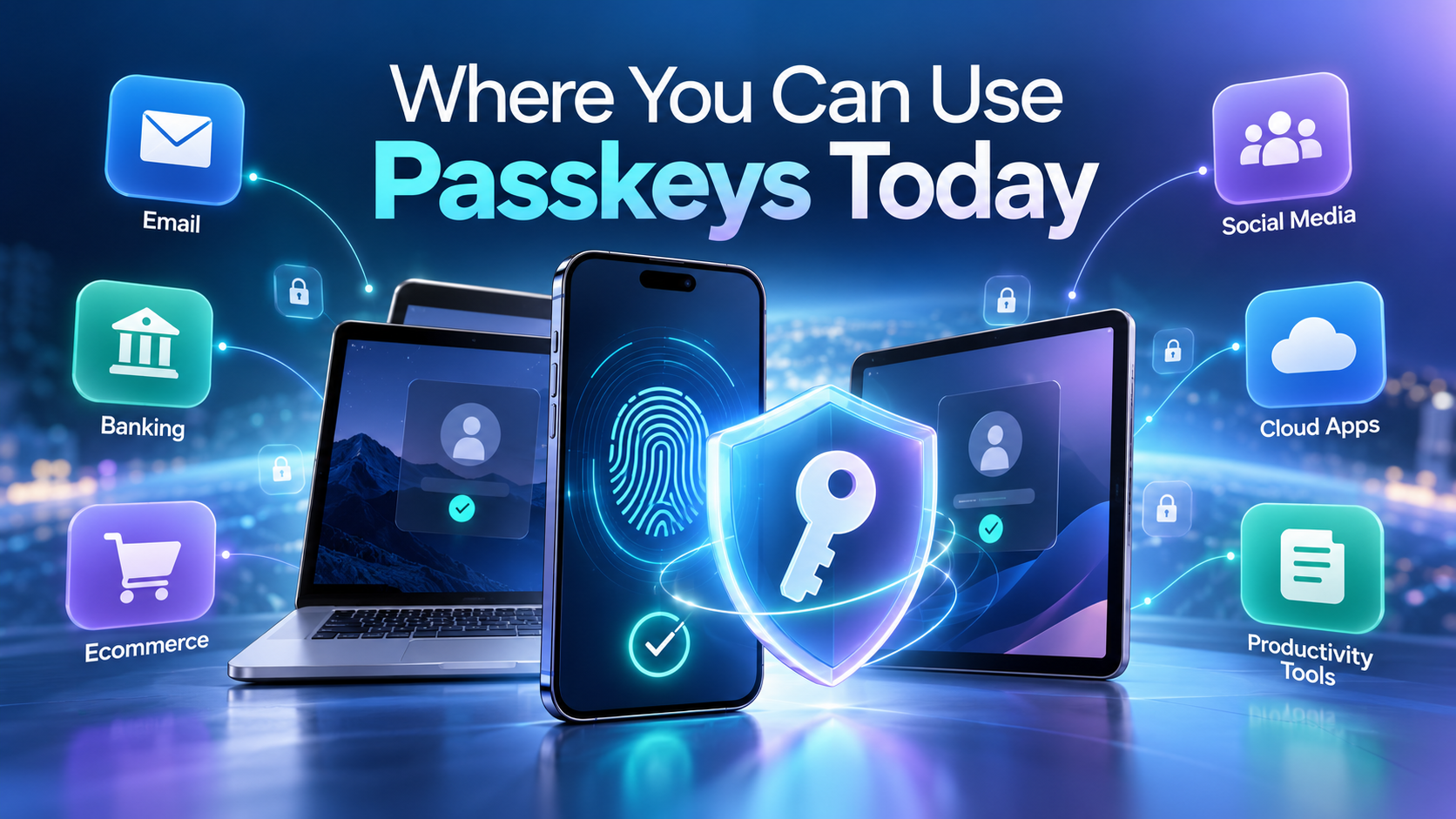
Passkeys work across all major operating systems and browsers. Common passkey managers include iCloud Keychain, Google Password Manager, 1Password and Dashlane.
Google says passkeys stay on your personal device and are “never shared with Google or any other third-party partners”, and that over 9 million Google Workspace customers have access to them.
To check if a site supports passkeys, open its security settings and look for “Passkeys”, “Sign in without a password”, or “Security keys”. The FIDO Alliance also maintains a public Passkey Directory.
Should You Switch? A Straight Answer
Switch now if:
- You use one device ecosystem (all Apple, or all Google) where passkeys sync automatically
- You keep forgetting passwords and resetting them
- Your bank, email or work account offers it
- You have ever clicked a link in a suspicious email
Wait a little if:
- You share one login with family or a team, since passkeys are tied to individual devices
- You often sign in on public or borrowed computers
- Your main accounts do not offer passkeys yet
Our honest view: do not delete your password on day one. Add a passkey, use it for a few weeks, keep your password and recovery options in place. Once passkeys work everywhere you need them, then tighten the old method. Google itself keeps passwords available and calls passkey sign-in optional.
What Happens If You Lose Your Phone?
This is the fear that stops most people, and the answer is better than expected.
| Your situation | What happens |
|---|---|
| Passkeys synced to your cloud account | Sign in to your new phone with your cloud account and the passkeys come back |
| Using a cross-platform manager (1Password, Dashlane) | Set up the manager on the new device and your passkeys are available |
| Moving Android to iPhone, no sync | Use your old device to sign in on the new one, then create a fresh passkey |
| Lost access to everything | Use account recovery, a backup password, or a hardware security key |
The FIDO Alliance notes that because passkeys can be backed up, they are better protected from loss than a device-only credential, and that FIDO security keys can act as a recovery credential.
One rule: before you switch, add a recovery email and phone number to your account. Google recommends exactly this. Thirty seconds now saves a lost account later.
Two Kinds of Passkeys (and Why It Matters at Work)
| Type | Where it lives | Best for |
|---|---|---|
| Synced passkey | Backed up and synced through a cloud service across your devices | Everyday personal accounts. Convenient, survives a lost phone |
| Device-bound passkey | Never leaves one device, including FIDO security keys | High-security work accounts, admin logins, regulated industries |
The FIDO Alliance describes device-bound passkeys as offering the highest security assurance with a hardware-backed root of trust. Most people only need synced passkeys. IT teams protecting admin accounts often want device-bound ones.
How to Set Up Your First Passkey in 5 Minutes
- Pick one account you use daily. A Google or Apple account is the easiest start.
- Open Settings > Security (wording varies) and look for Passkeys.
- Tap Create a passkey. Confirm with your fingerprint, face or screen lock.
- Sign out, then sign back in with the passkey to be sure it works.
- Keep your password and recovery options active until you have passkeys on your main accounts.
- Repeat for your email, bank and work accounts.
Common Questions People Get Wrong
| What people think | What is true |
|---|---|
| “The website gets my fingerprint” | No. Biometric data never leaves your device. The site only learns the check passed |
| “A passkey is just a saved password” | No. A saved password is still a password. A passkey is a key pair with nothing to steal |
| “I need a new gadget” | No. Your phone or laptop already has what is needed |
| “If my device is hacked, so is everything” | Device security still matters, but a passkey cannot be phished away from you remotely |
| “Passkeys cost money” | They are free on every major platform |
Frequently Asked Questions
What is a passkey for passwordless login?
A passkey is a pair of cryptographic keys that replaces your password. The private key stays locked on your device and the public key is stored by the website. You sign in with your fingerprint, face or screen lock, and no secret travels across the internet, so there is nothing a phishing site can steal.
What does passwordless login mean?
Passwordless login means signing in without typing a password. Instead you prove who you are with something you have and something you are, such as your phone plus your fingerprint. Passkeys are the most common passwordless method today. Magic links and one-time codes are also passwordless, but they are easier to intercept.
What is login using passkey?
Login using a passkey works in four steps. The website sends your device a random challenge. Your device asks you to confirm with a fingerprint, face or PIN. It then signs the challenge with the private key stored on the device. The site verifies that signature against your public key and signs you in.
What are the three types of authentication methods?
NIST groups authentication into three factors: something you know (password or PIN), something you have (phone or security key), and something you are (fingerprint or face). A passkey combines two of them, because the device is something you have and the unlock is something you are or know. That is why it needs no separate OTP.
Do passwordless login and passkeys need a username?
It depends on the system. Many business tools, including Salesforce commerce logins, still ask for a username first. But passkeys can also use discoverable credentials, where your device shows a list of your accounts for that site and you simply pick one. In that case you type nothing at all.
Are passkeys safer than passwords with two-factor authentication?
Generally yes, for one reason: passkeys cannot be phished. A password plus an SMS code can both be captured by a convincing fake login page. A passkey is bound to the real website’s address, so it will not work anywhere else, even if you are tricked into visiting a copy.
The Bottom Line
Passwords were built for a world with a handful of accounts. Most of us now have hundreds, and phishing has grown smart enough to fool trained professionals.
Passkeys fix the root problem rather than patching it. Nothing secret leaves your device, nothing useful is left in a breach, and signing in gets faster instead of slower.
Start with one account this week. Keep your password as a backup. Add more as the sites you use catch up.
More technology reads on R&B Solution: browse our Technology section [CONFIRM this category URL loads and add 2 more internal links to related posts once published].
Sources
- FIDO Alliance: Passkeys
- FIDO Alliance reports accelerating global passkey adoption, World Passkey Day 2026
- Google Safety Centre: Passkeys
- NIST Computer Security Resource Center: Authentication factor (SP 800-63-4)
- Salesforce Developers: Passwordless Login with Passkeys
- web.dev: Discoverable credentials deep dive
About The Author